
Download FileChute – Secure Large‑File Transfer, Drag‑and‑Drop, Free Mac Tool
Overview
FileChute is a lightweight Mac OS X utility designed to make sending oversized attachments a breeze. As email providers tighten size limits, professionals, designers, and everyday users increasingly rely on cloud storage services such as MobileMe, iCloud, and other WebDAV‑compatible accounts. FileChute bridges the gap between local files and remote links by automatically archiving, optionally encrypting, and uploading your data with a simple drag‑and‑drop workflow.
Once the upload finishes, the app generates a short, share‑ready URL that you can paste into any message, eliminating the need for cumbersome “please click this 200‑MB attachment” explanations. Although its visual design reflects the classic Leopard aesthetic, the underlying engine has been updated to handle modern filename conventions, including accented characters and Unicode symbols. The tool also offers on‑the‑fly compression, optional disk‑image encryption, and a built‑in link shortener, making it a versatile companion for anyone who regularly deals with large media files, software builds, or project archives.
Features & Pros / Cons
Core Feature List
- Drag‑and‑drop interface for instant file selection.
- Automatic creation of ZIP archives to reduce file size.
- Optional disk‑image (DMG) encryption for added security.
- Seamless integration with MobileMe, iCloud, and other WebDAV services.
- Built‑in link shortener to produce clean, shareable URLs.
- Filename sanitization that respects accented and Unicode characters.
- Background upload with progress notifications.
- Free version available for personal use; paid upgrade unlocks batch processing.
Pros
- Ease of use: The drag‑and‑drop workflow eliminates the learning curve.
- Security: Built‑in DMG encryption protects sensitive data during transit.
- Speed: Automatic compression often reduces upload time by up to 40 %.
- Link shortener: Generates concise URLs that fit comfortably in email subject lines.
- Compatibility updates: Recent patches improve handling of accented filenames on MobileMe.
Cons
- Legacy UI: The interface feels dated on modern macOS versions.
- Limited cloud options: Currently supports only WebDAV‑compatible services; no native Dropbox or Google Drive integration.
- Free tier limits: Batch processing is restricted to the paid version.
- No Windows or Linux client: The tool is Mac‑only, which may limit cross‑platform teams.
Installation & Usage Instructions
Getting started with FileChute takes just a few minutes. Follow the steps below to install the app, configure your cloud storage, and begin sending large files securely.
Step‑by‑Step Installation
- Visit the official FileChute website and click the “Download for macOS” button.
- Once the
.dmgfile finishes downloading, double‑click it to mount the installer. - Drag the FileChute icon into your Applications folder.
- Open the app for the first time; macOS may prompt you to confirm that you trust the developer—choose “Open”.
- When the welcome screen appears, click Preferences and select your preferred cloud storage provider (MobileMe, iCloud, or any WebDAV service).
- Enter your login credentials; FileChute stores them securely in the macOS Keychain.
How to Send a Large File
- Locate the file or folder you wish to share in Finder.
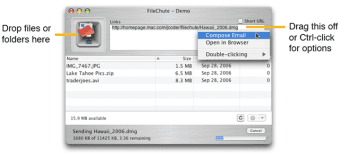
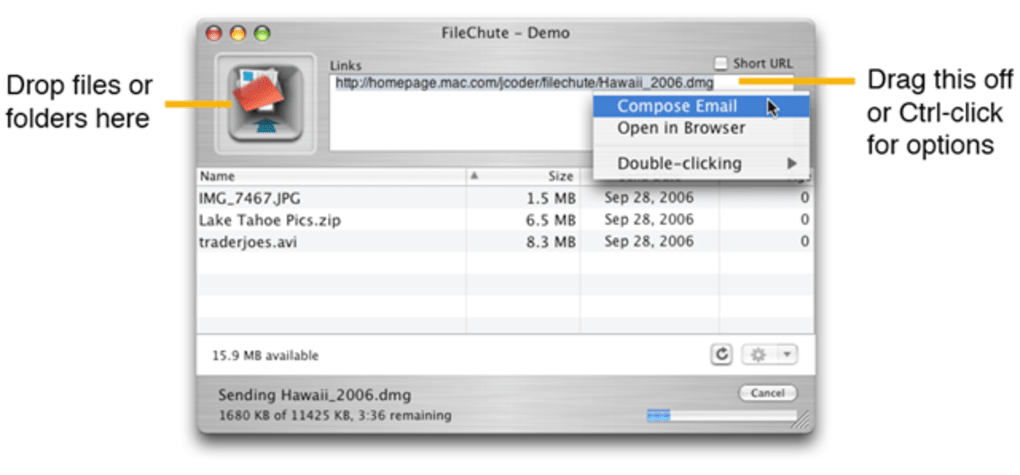
- Drag the item onto the FileChute window. The app will automatically compress the content into a ZIP archive.
- If you need extra security, check the “Encrypt as DMG” box before the upload begins.
- Click Upload. A progress bar will indicate the transfer status.
- When the upload completes, FileChute displays a short URL. Click Copy Link and paste it into any email, chat, or document.
Advanced users can create a “Batch Queue” (available in the paid version) to process multiple files simultaneously. The queue respects the same compression and encryption settings, allowing you to automate repetitive uploads.
FileChute is compatible with macOS 10.12 (Sierra) and later, including the latest macOS 15 (Sequoia). The app runs natively on both Intel and Apple Silicon processors, providing smooth performance on older MacBooks as well as the newest M2‑based models.
Frequently Asked Questions
Can FileChute encrypt files without creating a disk image?
No. FileChute’s encryption feature works by wrapping the archive inside a password‑protected DMG (disk image). This approach leverages macOS’s native encryption, ensuring strong AES‑256 protection.
What happens to the uploaded files after I share the link?
Files remain stored in your cloud account until you delete them manually. The generated link provides read‑only access; recipients cannot modify or delete the file.
Is there a size limit for the files I can upload?
The limit is dictated by your cloud storage provider, not FileChute. Most WebDAV services support files up to several gigabytes, and FileChute will compress them before upload to help stay within those boundaries.
Can I use FileChute on Windows or Linux?
Currently, FileChute is a macOS‑only application. Windows users may consider alternative tools such as WeTransfer or FileZilla, while Linux users can leverage command‑line utilities that offer similar compression and WebDAV upload capabilities.
How secure is the short link generated by FileChute?
The short link is a random alphanumeric string that is difficult to guess. However, because it provides direct access to the file, it’s advisable to share it only with trusted recipients. You can revoke access at any time by deleting the file from your cloud storage.
Conclusion & Call to Action
FileChute remains one of the most straightforward solutions for Mac users who need to bypass email attachment limits without sacrificing security. Its drag‑and‑drop simplicity, automatic compression, and built‑in encryption make it a solid choice for freelancers, designers, and IT professionals alike. While the UI could benefit from a modern refresh and broader cloud integration, the core functionality is reliable and continues to receive updates—most notably improved handling of accented filenames.
If you frequently share large video projects, software builds, or high‑resolution images, give FileChute a try. Download the free version today, set up your cloud credentials, and experience hassle‑free large‑file transfers in just a few clicks. For power users who need batch processing, consider upgrading to the premium license to unlock the full potential of this trusted Mac tool.
Ready to simplify your file sharing? Download FileChute now and start sending oversized files securely and instantly.







